
Resource · Listing-image prep
How to Turn a Cut-File Design Into Etsy Listing Images
Start with a clean, finished design preview in a supported format, then build a consistent image set that shows the actual design, useful material context, and accurate file/machine information—review everything before you upload to Etsy yourself.
Updated October 29, 2026 · Published August 16, 2026
What an Etsy cut-file listing image package needs to communicate
Buyers scanning a digital cut-file listing need to understand the design quickly—especially on a phone. A useful image set usually covers:
- A clear view of the actual design (not a vague substitute photo)
- Material or setting examples that keep the design readable
- Accurate file-format information for what you actually deliver
- Compatible-machine guidance you have verified yourself
This is practical listing prep—not a ranking formula and not a promise that images alone will create sales.
Real starting design
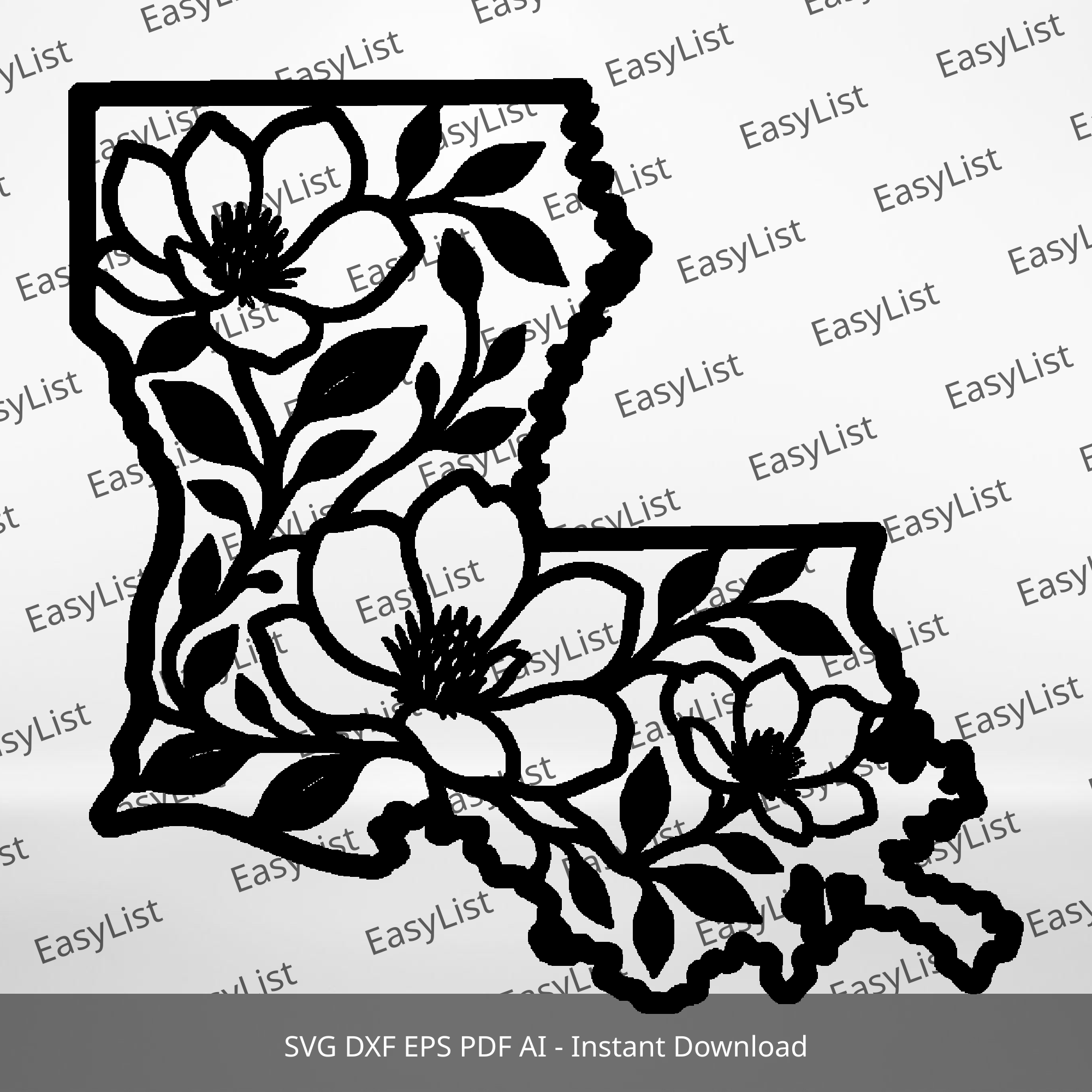
Example used on this page: Louisiana magnolia cut-file design. The preview below is a supported-style design raster (clean line art on white)—the kind of PNG/JPG/PDF preview EasyList accepts as an upload.

Step-by-step EasyList workflow
- Upload a supported design — PNG, JPG/JPEG, PDF, or a ZIP containing those files. Correct the preview if needed.
- Configure the package — choose generation options available in your account, then start the run.
- EasyList prepares images — your design is Sharp-composited onto locked material backgrounds, plus File Formats and Compatible Machines graphics based on your saved preferences.
- Review and download — check the results on the review screen, download the ZIP, then upload selected images to Etsy yourself.
Setup and review screenshots are not in the public showcase set yet; the steps above match the live Create Listing workflow.
Real EasyList output gallery
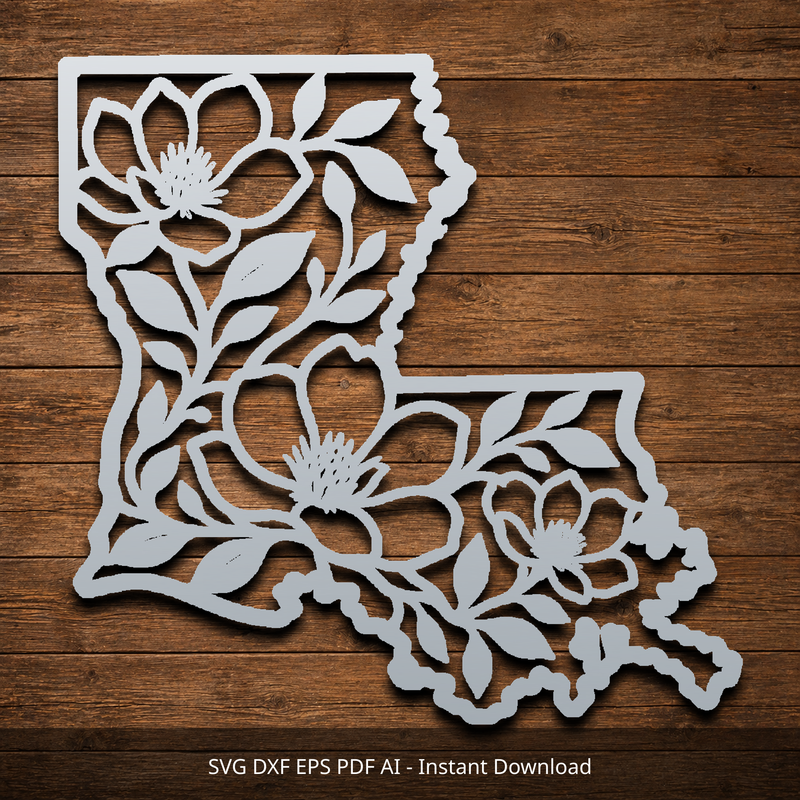
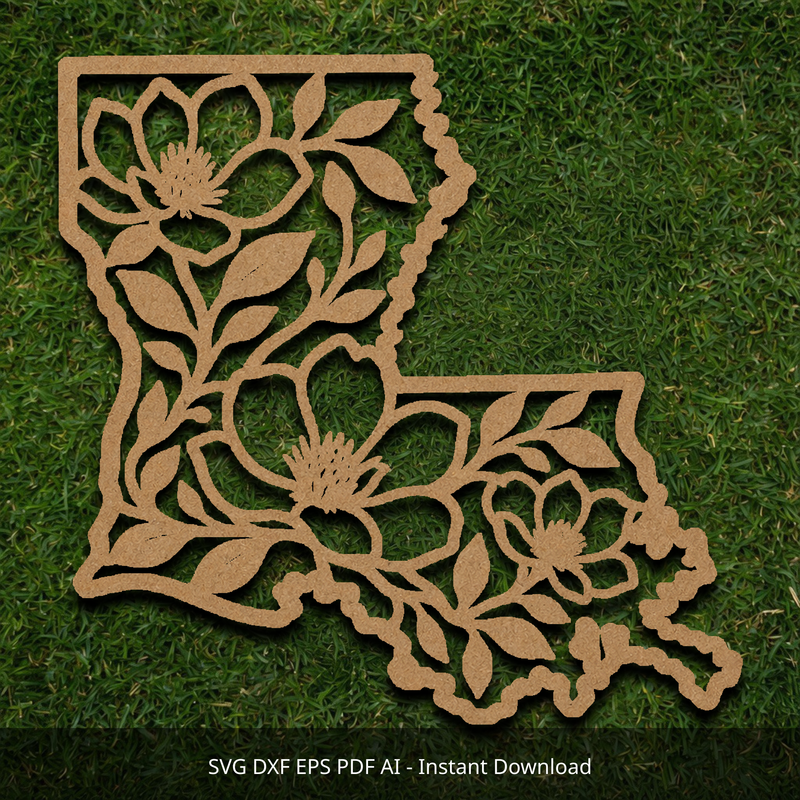
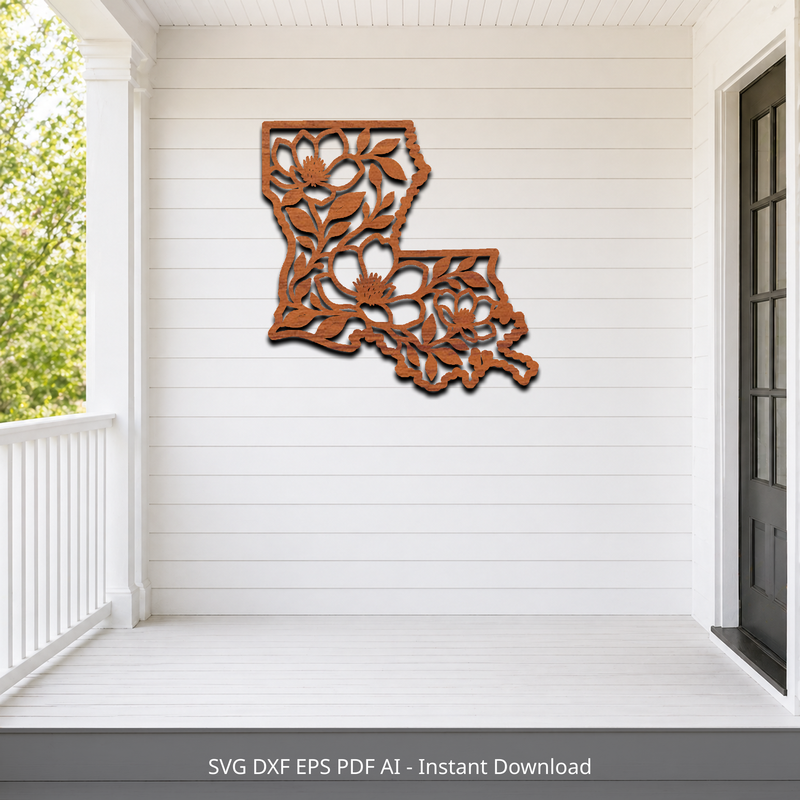
These are real EasyList mockups of the same Louisiana magnolia design. Footers that burn in unsupported format text are cropped so this page never displays an SVG/DXF upload claim.
File Formats & Compatible Machines graphics
A standard EasyList package also includes those two listing graphics from your saved preferences. Isolated screenshots of those graphics are not in the public showcase folder yet, so they are described here rather than invented.
What EasyList prepares
- Material mockups composited from your uploaded design
- File Formats graphic from formats saved in your preferences
- Compatible Machines graphic from machines saved in your preferences
- A downloadable ZIP of those listing images from the review screen
What the seller still handles
- Final Etsy listing decisions, pricing, and merchandising
- Product accuracy, licensing, and keyword choices
- Confirming formats and machines you actually deliver
- Physical verification with your own equipment and shop process
- Customer service after the sale
Supported file inputs
EasyList currently accepts PNG, JPG/JPEG, PDF, and a ZIP that contains those supported design files (each design under 20MB). For PDFs, EasyList uses the first page.
SVG and DXF uploads are not supported today. Export or rasterize to PNG, JPG, or PDF first when your working file is a vector cut format.
Practical listing-image checklist
Open your original design, the generated images, and the files you intend to deliver side by side. Work through these checks before choosing your listing gallery. This is a review of what the images communicate, not a requirement to use every image.
- Check the silhouette and openings. Compare the outside shape, lettering, and interior holes with your original. If a region looks solid when it should be empty, return to the preview. Read the fill-versus-cutaway guide before generating another set.
- Choose a readable first image. Look at it at thumbnail size on your phone. Can you recognize the design without zooming? Prefer a clear view over a decorative setting that hides lettering or thin details.
- Give each additional image a job. A close view can show detail; a material view can help someone picture a possible finish. Keep an alternate image when it answers a different buyer question, rather than repeating the same view.
- Separate the digital file from the physical example. Make clear that the buyer receives a digital design when that is what you sell. A mockup of wood or metal should not suggest that a manufactured item is included.
- Match format labels to the actual download. Open the buyer ZIP and check which files it contains. Your listing may describe formats you supply, but the formats EasyList accepts for a preview upload are a separate question.
- Verify machine and size information yourself. Keep only compatibility statements you have checked. A material mockup does not establish cutting settings, assembly fit, finished dimensions, or structural strength.
- Inspect branding and small text. Make sure a watermark does not cover a meaningful feature and that format or machine labels remain readable. Review the final downloaded images, not only the on-screen preview.
- Keep listing images separate from customer files. EasyList’s image ZIP is for listing preparation. Check that the buyer download you attach separately contains the original design files you promised, then publish to Etsy yourself.
For the Louisiana magnolia example above, start by comparing the outline and the small spaces around the artwork across the source preview and material views. Then decide which backgrounds keep those details visible. The gallery illustrates image preparation; it does not establish what files, dimensions, or machine settings a buyer would receive.
This checklist is practical guidance for sellers—not an Etsy policy document.
Ready to prepare listing images from your design?
Use EasyList on a supported preview of your own design, review the mockups and graphics, then upload to Etsy yourself.
Create your first five listing-image packages free. No credit card required.
Questions about this workflow
Can I make material mockups without photographing a finished product?
Yes. EasyList uses your uploaded design preview to prepare composited material mockups. These images illustrate the design in a material setting; they are not photographs of a manufactured item or evidence of successful manufacturing. Review the silhouette and openings against your original design before using the images.
How do I prepare an SVG or DXF design for this workflow?
Keep your original cut file as the buyer download. Export a clean PNG, JPG, or single-page PDF preview from your design software for EasyList. Check that the export includes the complete design and clearly shows which areas are material and which are openings. EasyList prepares listing images; it does not replace your original manufacturing files.
What should I check during fill correction?
Black represents material kept and white represents cut-away space in the correction preview. Compare enclosed openings, lettering, and thin details with your original design. Correct regions that look wrong before generating mockups. A convincing preview does not validate structural strength, machine settings, or whether a design can be cut successfully.
What file types can I use as the starting design?
Use PNG, JPG/JPEG, PDF, or a ZIP that contains those supported design files. SVG and DXF uploads are not supported today—export or rasterize to PNG, JPG, or PDF first when needed. PDFs use the first page.
Does EasyList invent a different product photo?
No. EasyList composites your uploaded design into locked material backgrounds and listing graphics. You still review every image before you put it on Etsy.
What do I still handle after EasyList prepares images?
You choose which images to use, write or edit listing details, set pricing, confirm formats and machines you actually offer, check licensing, and publish the listing on Etsy yourself.
Related
- Prepare fill and cut-away regions for mockups
- EasyList home
- Try EasyList free
- Etsy Listing Image Checklist for Digital Cut Files(Planned resource — not live yet)
- How to Show File Formats, Materials, and Compatible Machines in an Etsy Listing(Planned resource — not live yet)